
This article explains the main Sign Up / Login Popup settings and how to fix common issues.
General settings
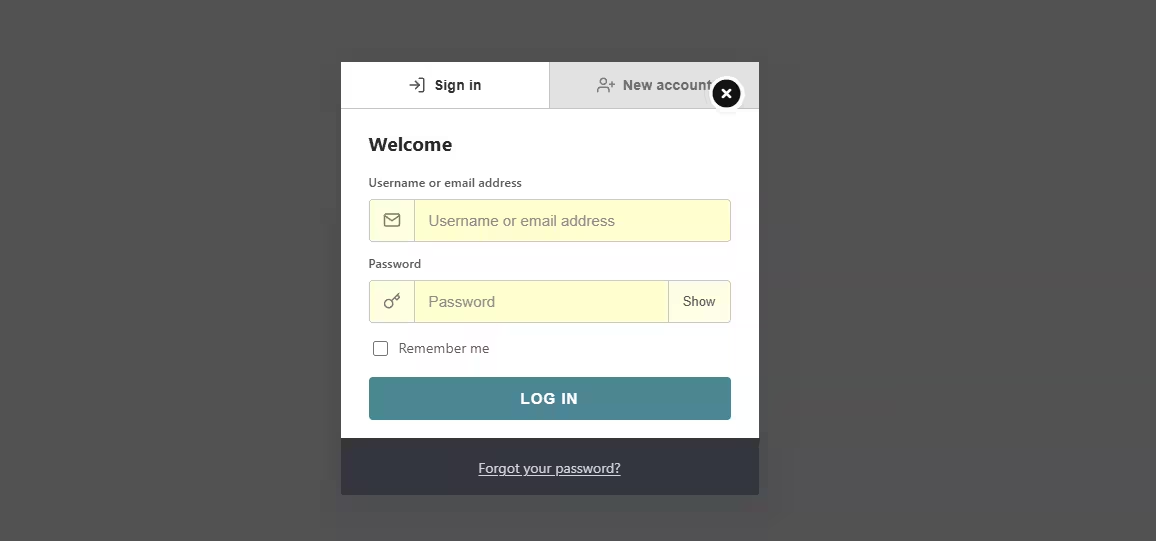
- Enable login form: Shows the login form with username or email and password fields.
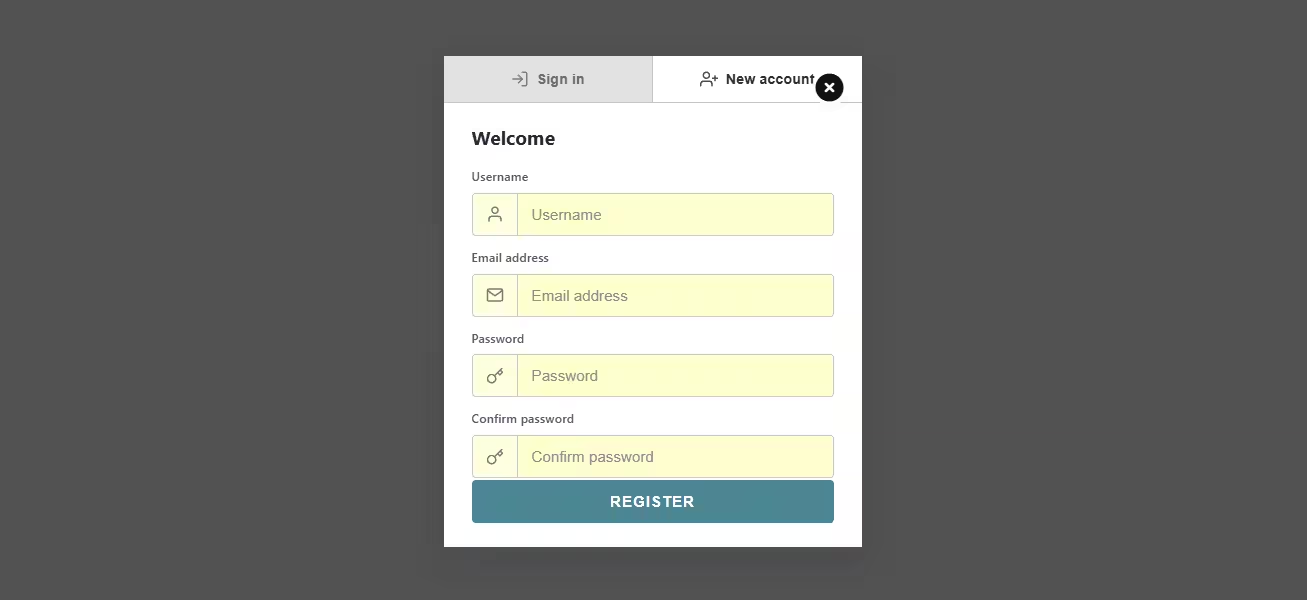
- Enable sign-up form: Shows the registration form. If this is enabled, WordPress must allow public registration for visitors to create accounts.
- Default tab: Controls whether visitors see the login tab or sign-up tab first when both forms are enabled.
- Tab labels: Customize the text for the login and sign-up tabs.
- Popup title: The main heading displayed inside the popup.
- Popup description: Optional supporting text displayed under the heading.
- Show field labels: Displays labels above form fields. This is recommended for accessibility.
- Show placeholders: Displays placeholder text inside empty fields.
- Logged-in visitors: Controls what logged-in users see:
- Hide the pop-up entirely
- Show a custom message
- Show nothing
- Hide the sign-up tab when WordPress registration is off: If enabled, the sign-up tab is hidden when public registration is disabled in WordPress.
- Message when registration is disabled: Displays a custom message when sign-up is unavailable.
Login settings
The login settings appear when Enable login form is turned on.
You can customize:
- Username or email label
- Password label
- Login button text
- Required field message
- Invalid login message
- Remember me checkbox
- Lost password link
- Lost password link URL
- Button style
- Success action
- Redirect URL
- Auto-close behavior
- Password visibility toggle
Login success actions
After a successful login, you can choose to:
- Close the popup
- Refresh the page
- Redirect to a URL
You can also choose whether the popup closes before or after refresh or redirect actions.
Sign-up settings
The sign-up settings appear when Enable sign up form is turned on.
You can customize:
- Username field visibility
- Username label
- Email label
- Password label
- Confirm password label
- Register button text
- Password confirmation requirement
If the username field is disabled, the username is created automatically from the visitor’s email address.
GDPR and consent settings
For registration forms, you can require visitors to accept:
- Privacy Policy only
- Terms & Conditions only
- Both Privacy Policy and Terms & Conditions
- No consent checkbox
You can also configure:
- Privacy Policy URL
- Terms & Conditions URL
- Link text
- Consent intro text
- Error messages for missing consent
- Error messages for missing policy or terms URLs
Policy links open in a new browser tab. Consent is checked in the browser and on the server.
Sign-up validation messages
You can customize messages for:
- Missing required fields
- Duplicate email
- Duplicate username
- Invalid email
- Password mismatch
- Weak password
- Successful registration
Registration success actions
After successful registration, you can choose actions such as:
- Close popup
- Refresh page
- Redirect to URL
- Switch to login form
- Show success message only
- Automatically log in the new user, then close, refresh, or redirect