
How to Create a Social Share Popup
This article explains how to create a Social Share Popup in Instant Popup Builder.
Create the popup
- In your WordPress admin area, go to Instant Popups.
- Click Add New Popup.
- Select Social Share Popup as the popup type.
- Configure the Social Share Settings.
- Configure the General, Design, and Conditions tabs as needed.
- Click Publish or Save.
Configure the share card
In Social Share Settings, you can configure:
- Heading: The main title shown at the top of the popup card. Example: Share this page
- Description: Optional text shown under the heading. Use this to explain why visitors should share the page.
- Open share links in new tab: When enabled, share links open in a new browser tab. This is recommended because it helps visitors stay on your website while completing the share action.
- Show URL field: Displays a read-only field containing the URL being shared. (This appears under the Share your link section.)
- Show copy link button: Displays a Copy Link action. If the URL field is enabled, this setting also controls the copy button beside the URL field.
- Copy success message: The message shown after the link is copied successfully. Example: Link copied
- Platforms: Choose which share buttons appear in the Share to section.
Available options include:
- X
- Telegram
- Copy Link
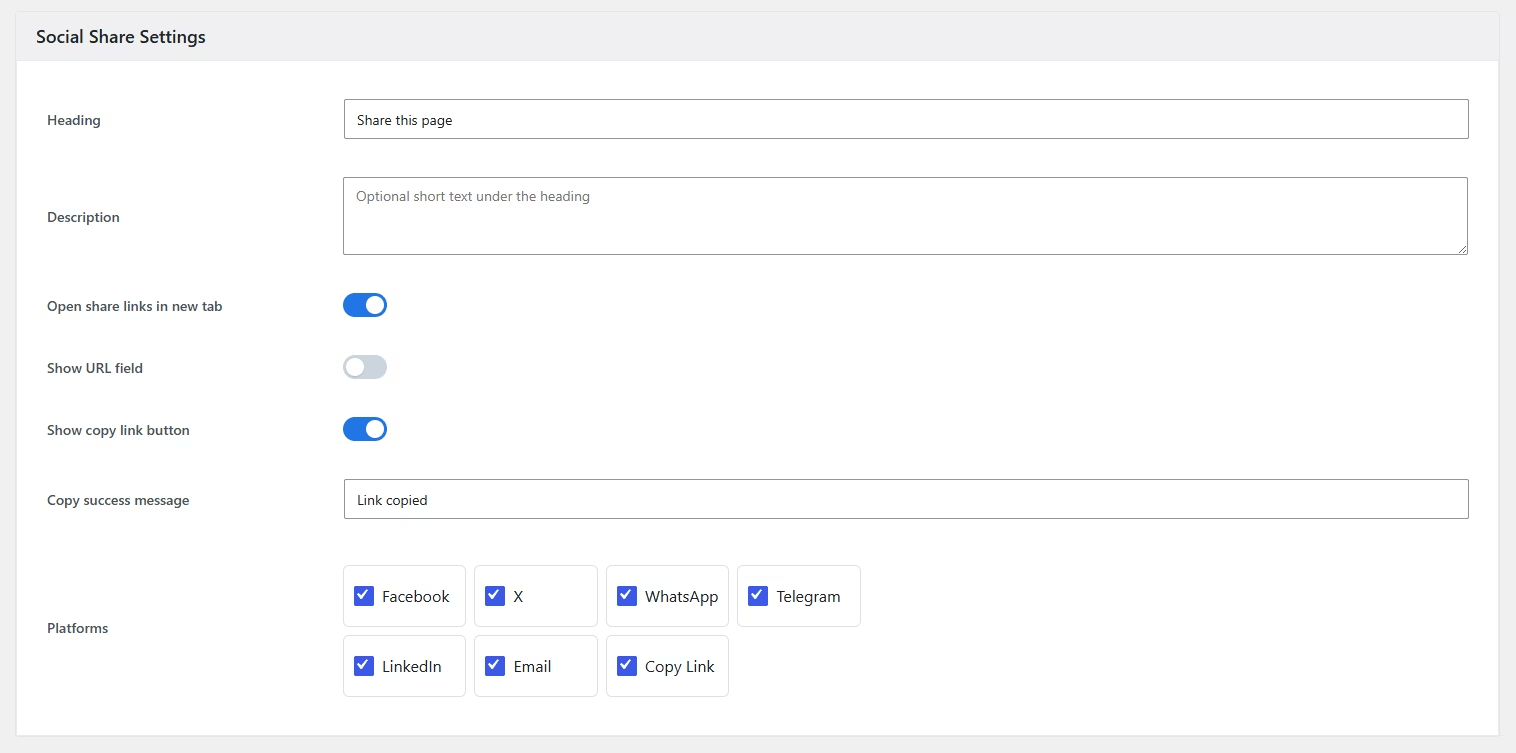
Default settings
For new Social Share popups:
- All platforms are enabled by default.
- Open share links in new tab is enabled.
- Show copy link button is enabled.
- Show URL field is disabled until you turn it on.
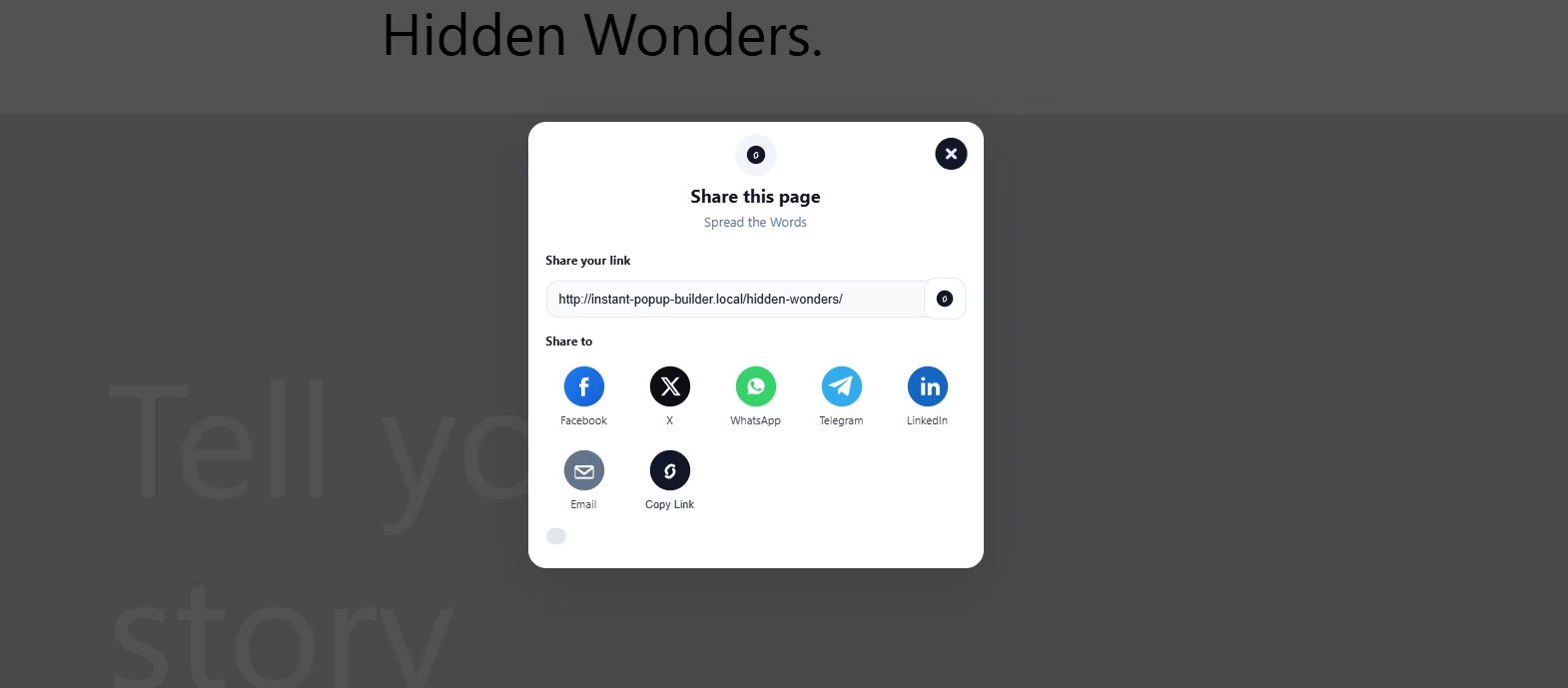
You can configure popup’s display behavior from the Popup settings section. Once done, you are all set! Publish the Popup.