
The Subscribe to Download Add-on for Instant Popup Builder allows you to offer a downloadable file to visitors after they subscribe through a popup. This is useful for lead magnets such as PDFs, guides, templates, coupons, reports, or other downloadable resources.
This add-on is available for subscription-type popups and requires the related Instant Popup plugins to be active.
Requirements
Before setting up a Subscribe to Download pop-up, make sure the following plugins are installed and active:
- Instant Popup Builder
- Subscribe to Download extension/add-on (With Active License)
Creating a Subscribe to Download Popup
Step 1: Create a Subscription Popup
- In your WordPress admin dashboard, go to Instant Popups > Add New.
- Click the Subscription Popup card.
- Select a pop-up template, such as Basic, Classic, or another available design.
- Configure the basic pop-up settings.
- Save the pop-up.
Step 2: Configure Download Settings
- Edit the subscription popup you created.
- In the popup editor, go to Popup Settings > Subscription Settings.
- Add your downloadable file by choosing one of the following options:
- Click Upload File to upload a file from your computer.
- Enter an external file URL if the file is hosted elsewhere.
- Select the file you want to use by clicking the Select button.
- Choose a delivery method:Auto-Download
The file downloads automatically after the visitor successfully subscribes.Email Attachment
The file is attached directly to the subscription email. This method supports files up to 10 MB.Email Link
A secure download link is sent to the subscriber by email. This is the recommended delivery method.
Step 3: Configure Download Restrictions
You can control how the download link is accessed by configuring the available restriction settings.
- Link Expiry: Set how long the download link remains valid, in hours.
- Max Downloads: Set the maximum number of download attempts allowed per subscriber.
These options help protect your downloadable file from unauthorized sharing.
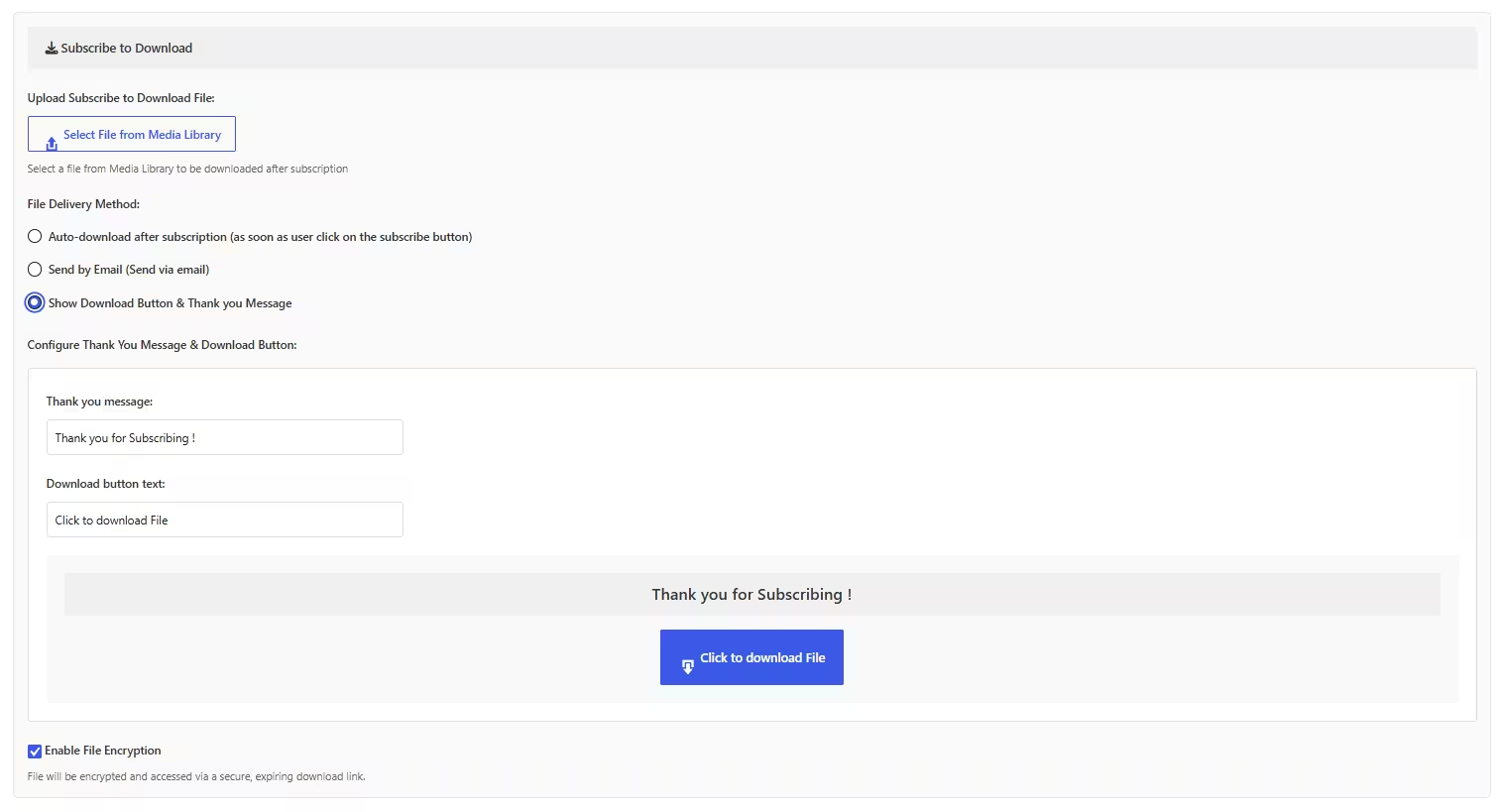
Step 4: Customize Email and Thank You Message
If you are using an email-based delivery method, customize the email template used to send the download file or download link.
You can also set a custom Thank You Message that appears after the visitor successfully subscribes.
After configuring these options, click Save Settings, then save the popup.
You are all set!